Talk to your computer
Press a key, talk, press it again. No phone needed.
-
Windows
Install
Download ShoutAbout for Windows and open ShoutAbout-Setup.exe. Windows asks first: click More info, then Run anyway. Then Yes, Next and Finish.
ShoutAbout starts next to the clock.
Mac
Install
Download ShoutAbout for Mac, open ShoutAbout.dmg and drag ShoutAbout into Applications. Open it, and click Open when macOS asks.
A yellow mouth appears in the menu bar. Allow the microphone, and turn on ShoutAbout under Accessibility when macOS asks: that's what lets it paste.
-
Step 1 of 3
Let's get you talking
ShoutAbout checks your computer, picks the speech model that fits, and downloads it with a progress bar. Nothing to choose.
Everything runs on your computer. Your voice never leaves it.

-
Step 2 of 3
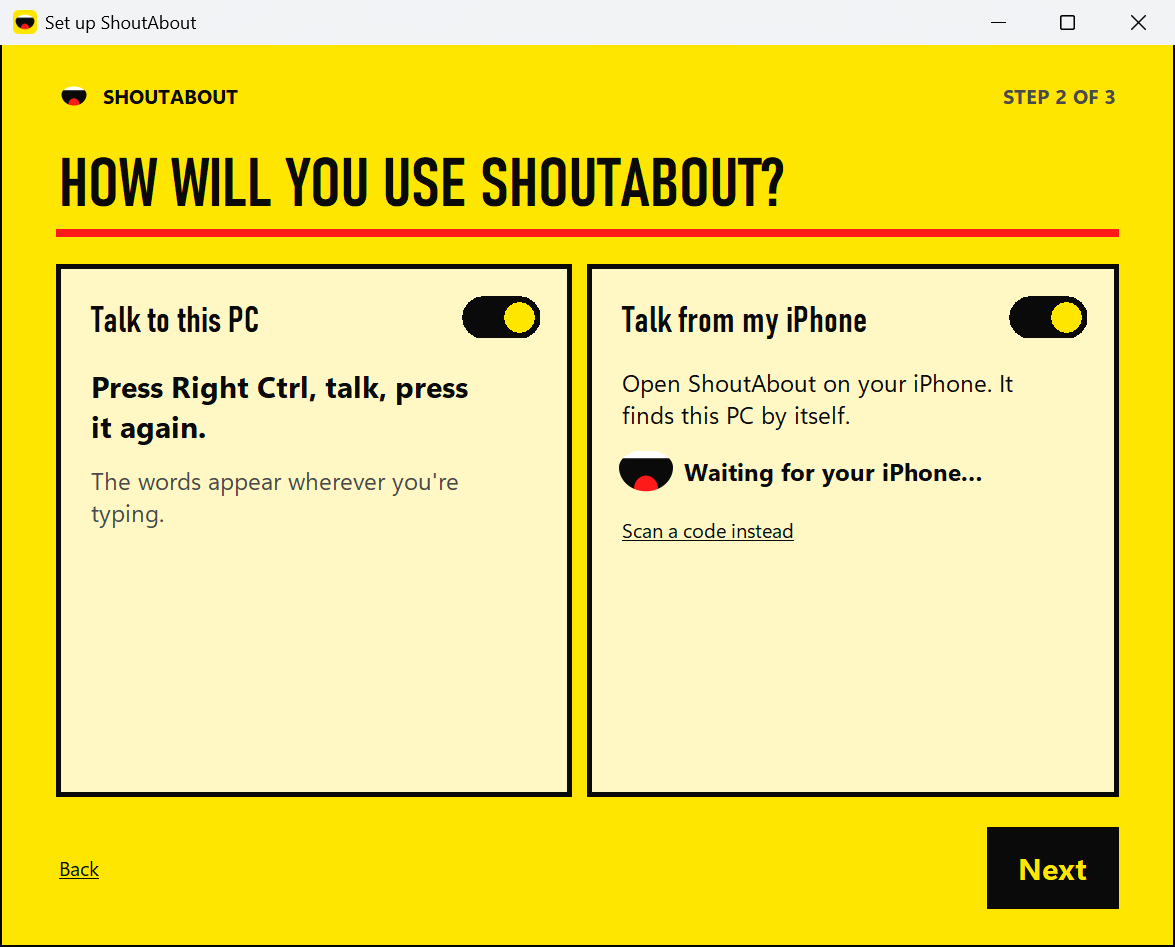
How will you use ShoutAbout?
Leave Talk to this PC on (Talk to this Mac on a Mac). Your key is Right Ctrl on Windows and Right ⌘ on a Mac: press it, talk, press it again.
Want your iPhone too? Turn on Talk from my iPhone and follow iPhone → computer.
-
Step 3 of 3
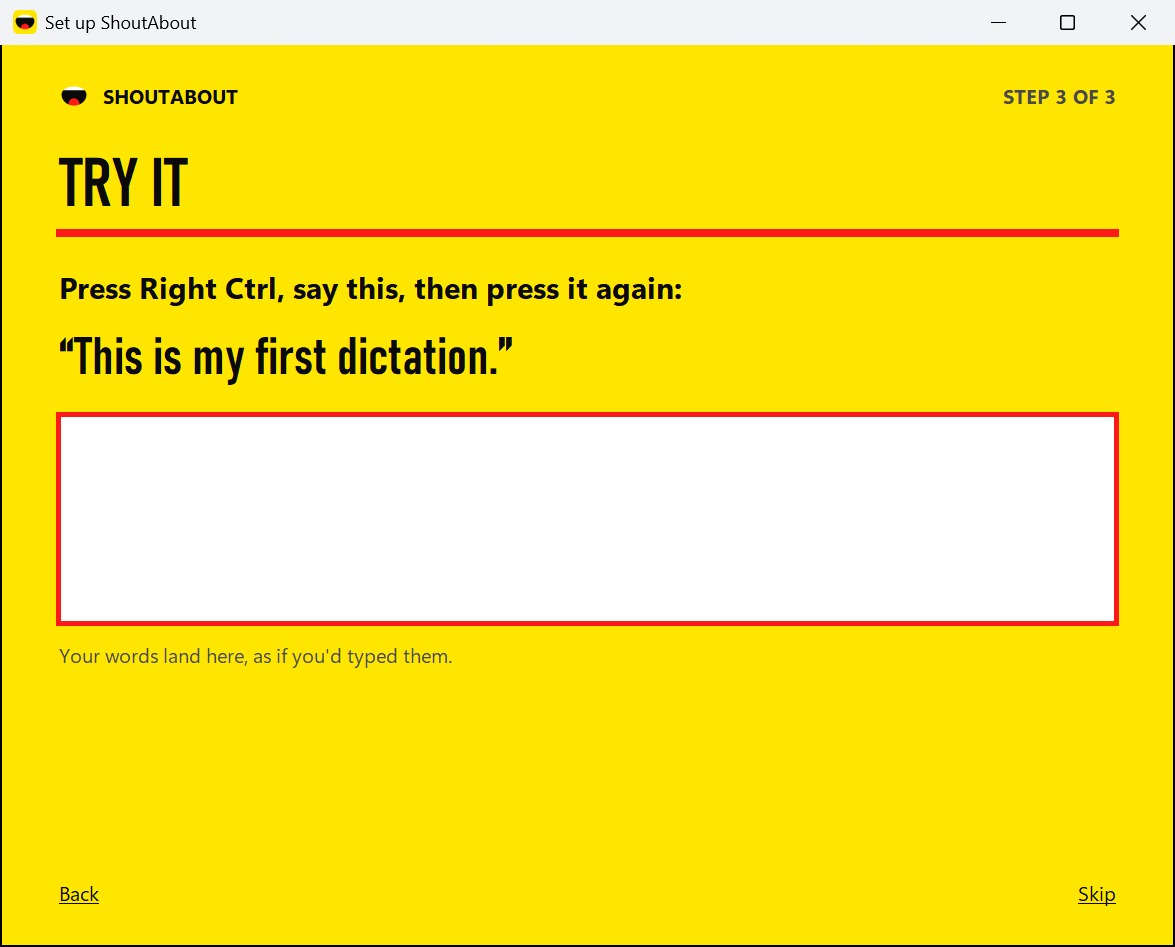
Try it
Press your key and say:
“This is my first dictation.”Press it again. Your words land in the box, as if you'd typed them.
-
Done
Talk anywhere
Press your key in any app, talk, press it again. This little mouth pops up at the top of the screen while it listens.
ShoutAbout lives next to the clock on Windows, and in the menu bar on a Mac. Click its mouth for Pause and Settings.

iPhone on its own
Your iPhone writes the words itself and copies them. Works anywhere.
-
Open the app
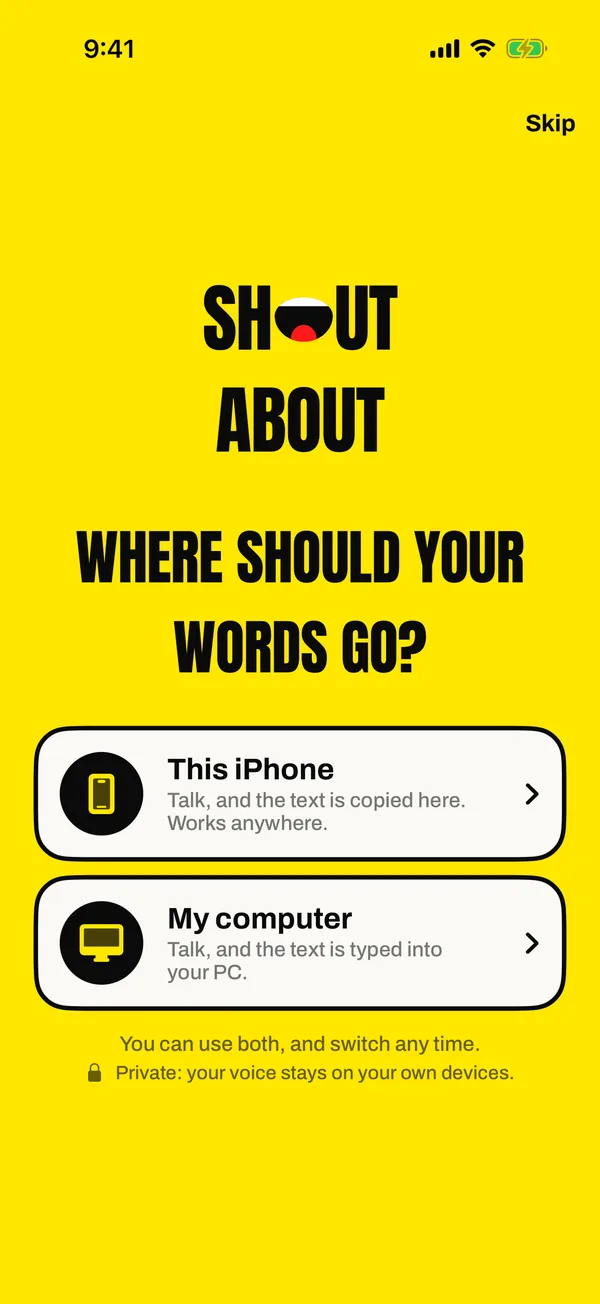
Where should your words go?
Get the iPhone app (a TestFlight beta for now: see Download), open it, and tap This iPhone. Then allow the microphone.
You can use both, and switch any time.
-
Optional
One press to talk
Open Settings › Action Button, swipe to Controls, tap Choose a Control, then pick ShoutAbout › Dictate.
Then press the Action Button, talk, and press it again. You don't even need to open the app: the mouth shows in the Dynamic Island while it listens.
No Action Button? Add Dictate to Control Center instead.
Listening0:07 -
Talk
Tap & talk
In the app, tap the mouth and talk. Tap again to finish. Your words are on your clipboard: paste them anywhere.
ComputerPhone Copied! On your clipboard. Paste it anywhere.
iPhone → computer
Talk into your iPhone, and your computer types it. Both need to be on the same Wi-Fi.
-
On your computer
Turn on “Talk from my iPhone”
It's in the setup window. Already set up? Click the yellow mouth (next to the clock, or in the Mac's menu bar) and choose Settings › Phones › Add a phone.
Your computer now waits for your iPhone.
-
On your iPhone
Tap your computer
Open ShoutAbout and tap My computer (or Settings › Connect a computer). Your computer shows up by itself. Tap it.
The first time, iOS asks to find devices on your local network. Tap Allow: that's how your iPhone finds your computer.
-
Both
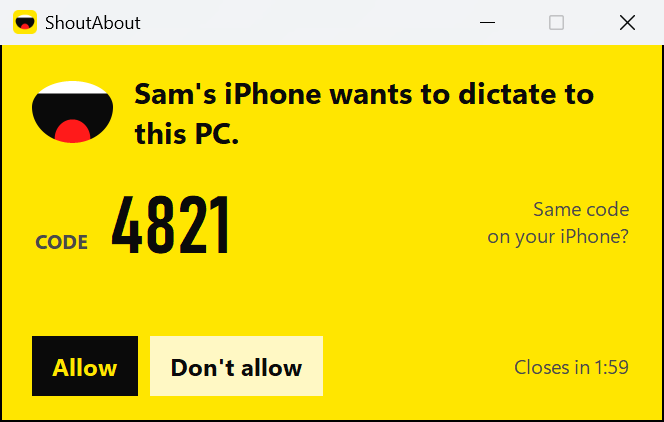
Check the code, click Allow
Your iPhone and your computer show the same 4-digit code. Same code on both? Click Allow on your computer. That's it: your iPhone is connected.
No code to type, no password. Not your iPhone? Click Don't allow. The request ends by itself after two minutes.
-
Talk
Choose your computer and talk
At the top of the app, choose your computer instead of Phone. Tap the mouth, talk, tap again. Your words land wherever you're typing on your computer.
ComputerPhone Pasted! On your computer, where you're typing. -
Away from home
It still works
If your computer can't be reached, your iPhone writes the text itself and puts it on your clipboard. It tells you so.
ComputerPhone Copied! Your computer isn't reachable, so it's on your clipboard.
Something not working? See the quick fixes.